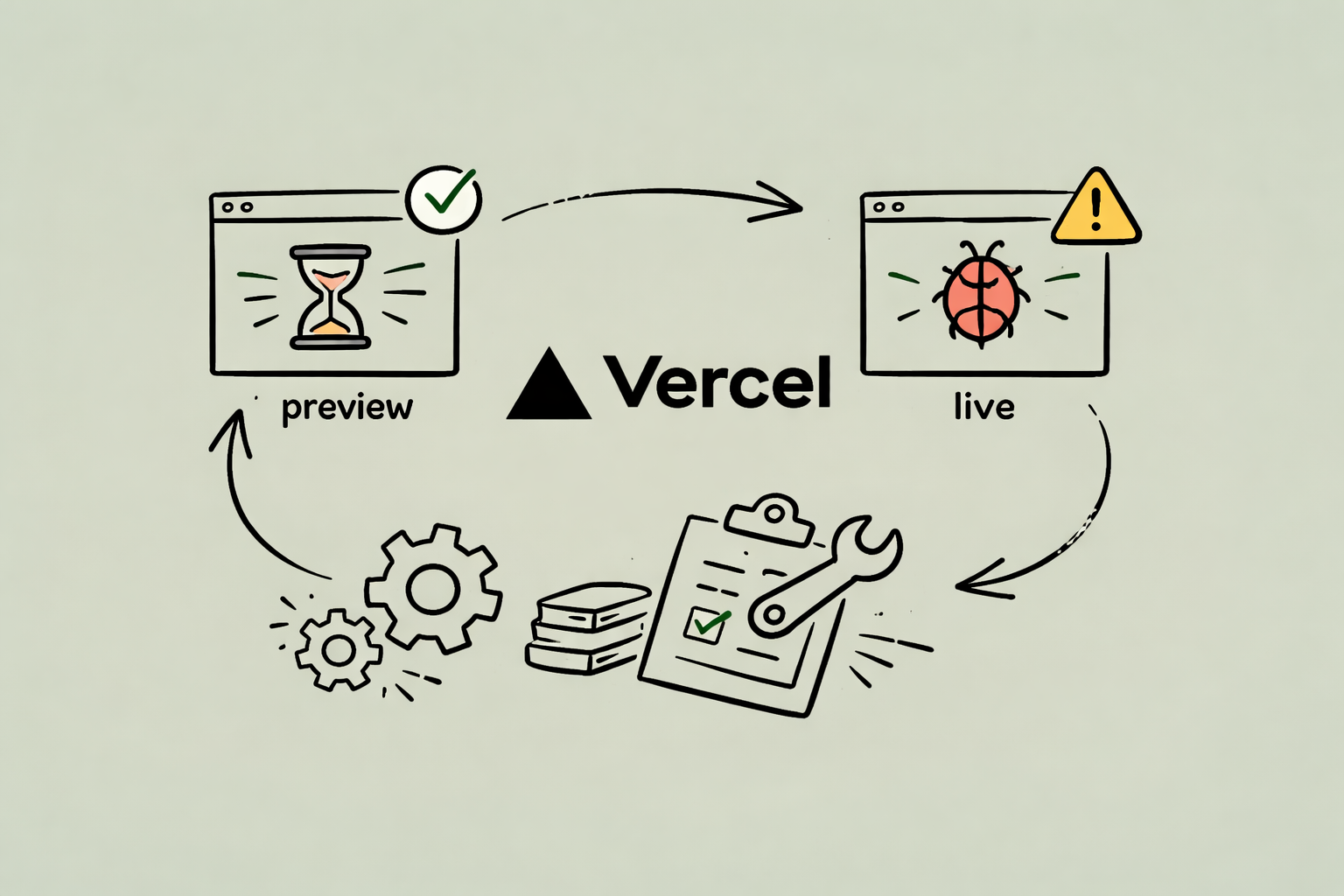
I was working on one of my projects, and was pushing the code to Vercel. The build passed, and the dashboard showed green checkmarks. I was happy that my code was deployed.
But the app site? It was still showing that old layout from two months ago. And I was confused. I started questioning everything. Did the cache break? Is there a CDN issue? Maybe the browser needs a hard refresh?
I learned this the hard way last week. Pushed a major feature update, hit a CVE vulnerability error in Next.js 16.0.1, fixed it by upgrading to 16.1.6, got the green light on my build—and then sat there, confused, watching the production site serve stale content.
Turns out, my "successful" deployment went live as a Preview. Not Production.
How Vercel Deployments Actually Work
When working with Vercel, there's a fundamental concept that trips up almost everyone: not all deployments are created equal.
Every time code hits the repository, Vercel creates a deployment. This happens for every branch, every pull request, every single push. Each one gets a unique URL—something like your-project-b1b3bj5.vercel.app.
Vercel maintains two distinct types:
Preview Deployments:
- Generated automatically for all branches and pull requests
- Each gets its own isolated URL
- Perfect for testing before going live
- Never affect what users see on the main domain
- Can be shared with teammates for feedback
Production Deployments:
- What the custom domain points to (
tarun000.vercel.app) - Only one deployment holds "Production" status at a time
- Serves real traffic to actual users
- Usually updated automatically when pushing to main branch
Under normal circumstances, Vercel handles this automatically. Push to main, and the deployment gets promoted to Production without manual intervention. It's seamless, until it isn't.
What "Promote to Production" Means (And When it's needed)
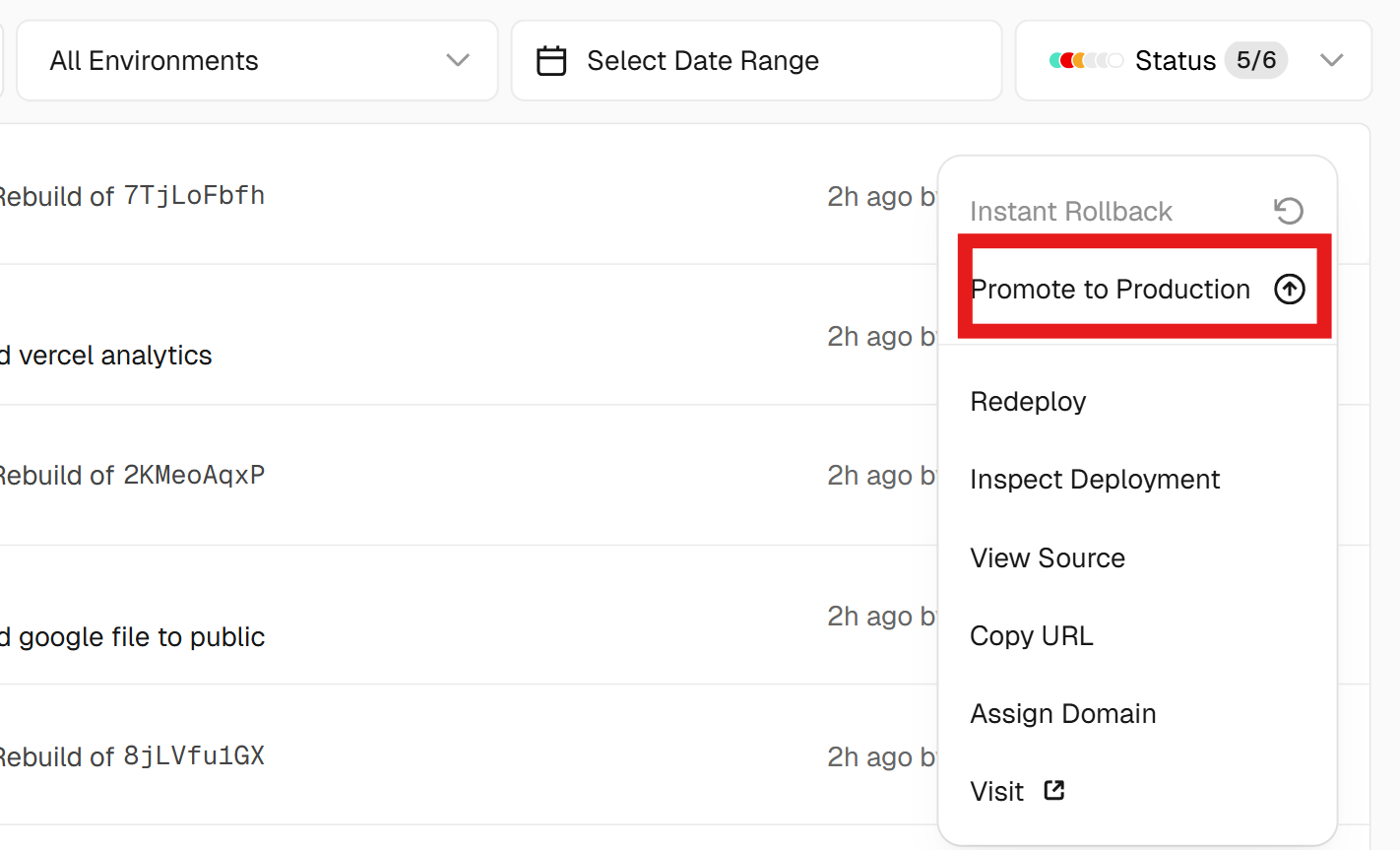
The "Promote to Production" feature is Vercel's manual override button. It tells Vercel: "This specific deployment is what should be serving on the production domain right now."
Most of the time, this happens automatically. But manual promotion becomes necessary in several scenarios:
- After a failed build breaks the automatic flow - When a deployment fails due to build errors or security vulnerabilities, the next successful commit might deploy as Preview instead of Production
- Rolling back to a stable version - Instead of rushing a fix commit, promote a previous working deployment
- Cherry-picking specific commits - Skip problematic commits by promoting an earlier stable build
- Testing with production environment - Temporarily promote a preview to access production data or variables
Finding the promotion option is straightforward. Navigate to Deployments, locate the build that should go live, click the three-dot menu, and select "Promote to Production." The domain updates within seconds.
The Silent Problem: Stale Production
Here's what makes this issue insidious: everything looks fine.
The latest code is deployed. It's live on a preview URL. Testing confirms it works. Build logs show success. Green checkmarks everywhere. No error messages.
But the main domain? That still serving a deployment from before any of this happened.
This happens more often than developers realize. A build fails due to a dependency issue. A fix gets pushed. The new build succeeds and deploys—as a Preview. The old Production deployment remains live.
There's no alert saying "your production deployment is stale." Vercel won't send a notification because, technically, everything is working. There's a valid Production deployment and successful Preview deployments.
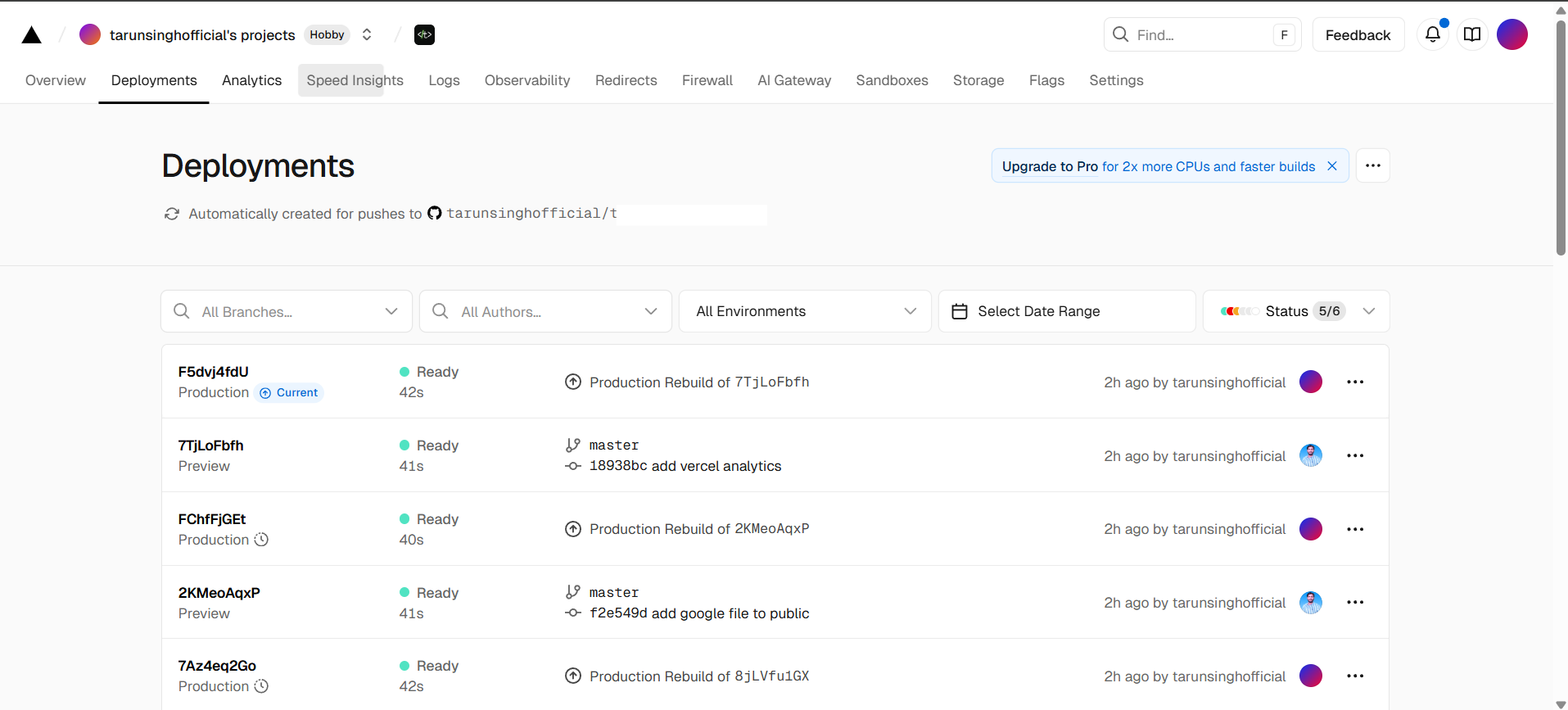
The only way to catch this: manually verify. Open the Deployments tab, look for the "Production" badge, and check which commit it's attached to. If Production is on last week's deployment while recent builds are badgeless, that's the problem.
Then Why My Build Failed: Vercel's Security Blocking
The trigger for this mess was a security vulnerability in Next.js 16.0.1. Vercel's build system actively scans dependencies and blocks deployments if known CVEs are detected.
This is a feature, not a bug.
When Vercel flags a vulnerable dependency:
- The build fails before reaching any deployment environment
- The dashboard shows an error with details
- Logs explain which package and CVE triggered the block
- No deployment gets created—neither Preview nor Production
Upgrading to Next.js 16.1.6 resolved the vulnerability. The next commit built successfully. But because the automatic promotion flow had been interrupted, the successful deployment landed in Preview status.
This aggressive scanning prevents shipping known vulnerabilities. The tradeoff? It can surprise developers during critical deployments.
What Actually Works
Getting burned once was enough. Here's what changed to prevent ghost deployments:
Set up deployment notifications. Vercel integrates with Slack and Discord. These notifications specify whether deployments are Preview or Production—the detail that matters most. If days pass without a Production notification despite multiple commits, something's wrong.
Check deployment status, not build status. A successful build doesn't guarantee Production. Glance at the Deployments tab and confirm the "Production" badge is on the latest commit.
Use empty commits to force deployments when Vercel's automatic promotion seems stuck:
git commit --allow-empty -m "force production deploy"
Pin dependency versions. Lock exact versions in package.json (16.1.6 instead of ^16.0.0). Update dependencies intentionally during maintenance windows, not during feature work.
Verify the actual production domain before announcing features. Visit yourrealdomain.com (not a preview URL) and confirm changes are visible.
Manual Promotion vs. Redeploying: Which to Use
Use manual promotion when:
- A stable deployment needs to go live immediately
- Rolling back from a broken deployment
- Moving a successful Preview to Production
- Time is critical and waiting for a build isn't ideal
Push a new commit when:
- Code changes are needed first
- Environment variables require updating
- Uncertainty exists about which deployment is correct
- Creating a clear git history record matters
Manual promotion takes seconds. But it doesn't create new commits or trigger builds—it just changes which existing deployment the domain points to.
Wrapping It Up
The worst deployment issue is one that doesn't throw an error. Everything looks successful. Dashboards are green. Builds pass. But somewhere in the pipeline, automatic promotion failed, and the production site serves old code.
Understanding Preview vs. Production isn't just about fixing problems. It's about knowing where to look when things seem fine but aren't, and having tools to intervene when automation fails.
Check that Production badge. Set up notifications. Don't assume green checkmarks mean live code.
Because shipping to a preview URL while users see last month's version? That's a bug no error log will catch.